In today’s fast-paced software world, teams aim to deliver high-quality software quickly. Continuous Test Automation plays a big role in achieving this. One of the best tools for this is Jenkins — an open-source automation server used to build, test, and deploy software continuously.
What Is Jenkins?
Jenkins is a free and open-source automation tool written in Java. It helps developers automate parts of the software development process like building, testing, and deploying code.
You can use Jenkins with popular tools like Git, Selenium, JUnit, and Docker to make your testing process faster and more reliable.
👉 Learn more on the official Jenkins website: https://www.jenkins.io/
Why Use Jenkins for Continuous Testing?
-
Automation of Repetitive Tasks:
Jenkins runs tests automatically after every code change, saving manual effort. -
Continuous Integration (CI):
Every new code commit triggers Jenkins to build and test the project. It helps catch bugs early. -
Supports Multiple Tools:
You can connect Jenkins with Selenium, JUnit, or Appium for automated testing. -
Easy Setup with Plugins:
Jenkins has hundreds of plugins to integrate testing, version control, and reporting tools. -
Improves Collaboration:
Everyone in the team can see real-time test results, making communication easier.
How to Set Up Continuous Test Automation in Jenkins
Here’s a step-by-step beginner guide:
-
Install Jenkins:
Download it from Jenkins Downloads and follow the setup guide. -
Install Required Plugins:
Go to Manage Jenkins → Manage Plugins and install tools like Git, Selenium, and JUnit. -
Connect Your Code Repository:
Integrate with GitHub or Bitbucket so Jenkins can access your project. -
Create a Jenkins Job:
Define what Jenkins should do — for example, run unit tests or UI tests automatically. -
Schedule Builds:
Use triggers like “build after every Git commit” to automate test execution. -
View Reports:
Jenkins provides test reports and trends to help monitor software quality.
Best Practices for Jenkins Test Automation
-
Use Pipeline as Code (Jenkinsfile) for versioned CI/CD pipelines.
-
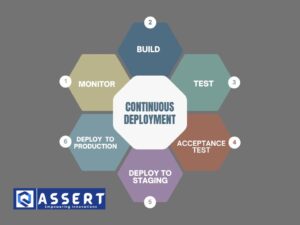
Separate test, build, and deploy stages clearly.
-
Run parallel tests to save time.
-
Store test reports using Jenkins plugins for better visibility.
Conclusion
Using Jenkins for continuous test automation helps teams deliver better software faster. It removes manual testing delays, improves code quality, and supports smooth CI/CD pipelines.
If you’re new to automation, start small — set up a simple Jenkins pipeline, run a few automated tests, and watch how much time it saves your team!